
You can assign a signature configuration to a specific individual if required.
This is often used when a particular user needs a unique layout, message, or branding that differs from the rest of the organisation.
For example, a CEO, marketing representative, or staff member with a special campaign signature.
Steps
-
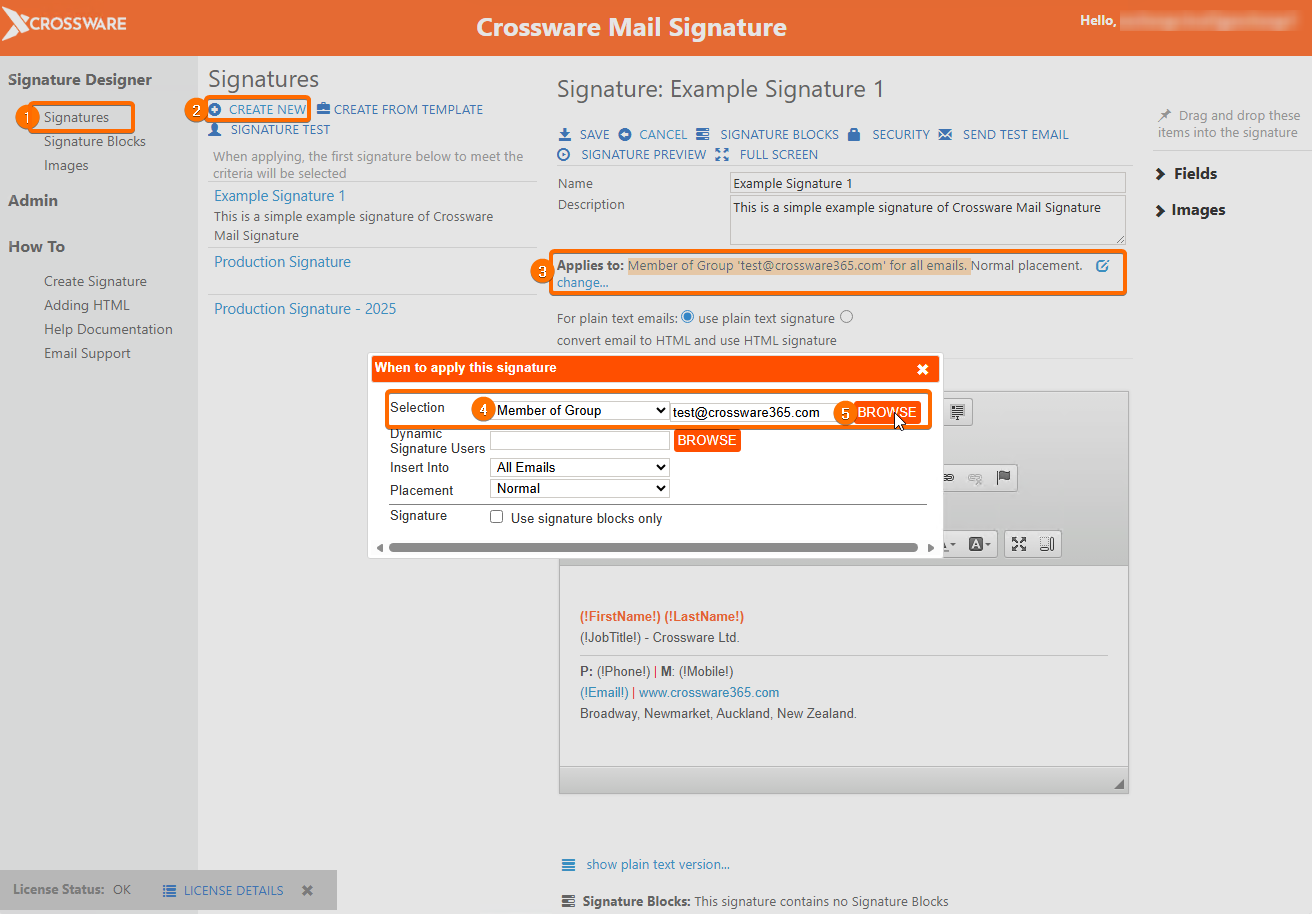
In the left side menu Under Signature Designer, click Signatures or Signature Blocks (whichever you want to configure).
-
Create a new Signature Configuration document.
-
In the Applies to section, click Change.
-
Under Selection, select Member of Group.
-
Click BROWSE, search for the individual user, and select their name.
The following line will appear in the Signature Design:
Applies to Member of Group test@crossware365.com for all emails.
-
Click the X and then save your signature.
Your signature has now been applied to the user.
Notes
-
Signature configurations are processed in the order they are displayed.
-
Only one signature configuration can be applied to each email.
-
If the user belongs to a group with a configuration listed before their individual one, the group signature will take precedence.